AWS CUR (FOCUS)
CloudCADI ingests AWS cost and usage data from an S3 bucket populated by an AWS Data Export in FOCUS 1.0 format. The bucket used here must match the S3BucketName parameter supplied in the AWS CloudFormation deployment.
Step 1 - Configure Cost and Usage Data Export
The Cost and Usage Data Export must be created in the management account.
-
Sign in to the AWS Management Console.
-
Open the Billing and Cost Management console.
-
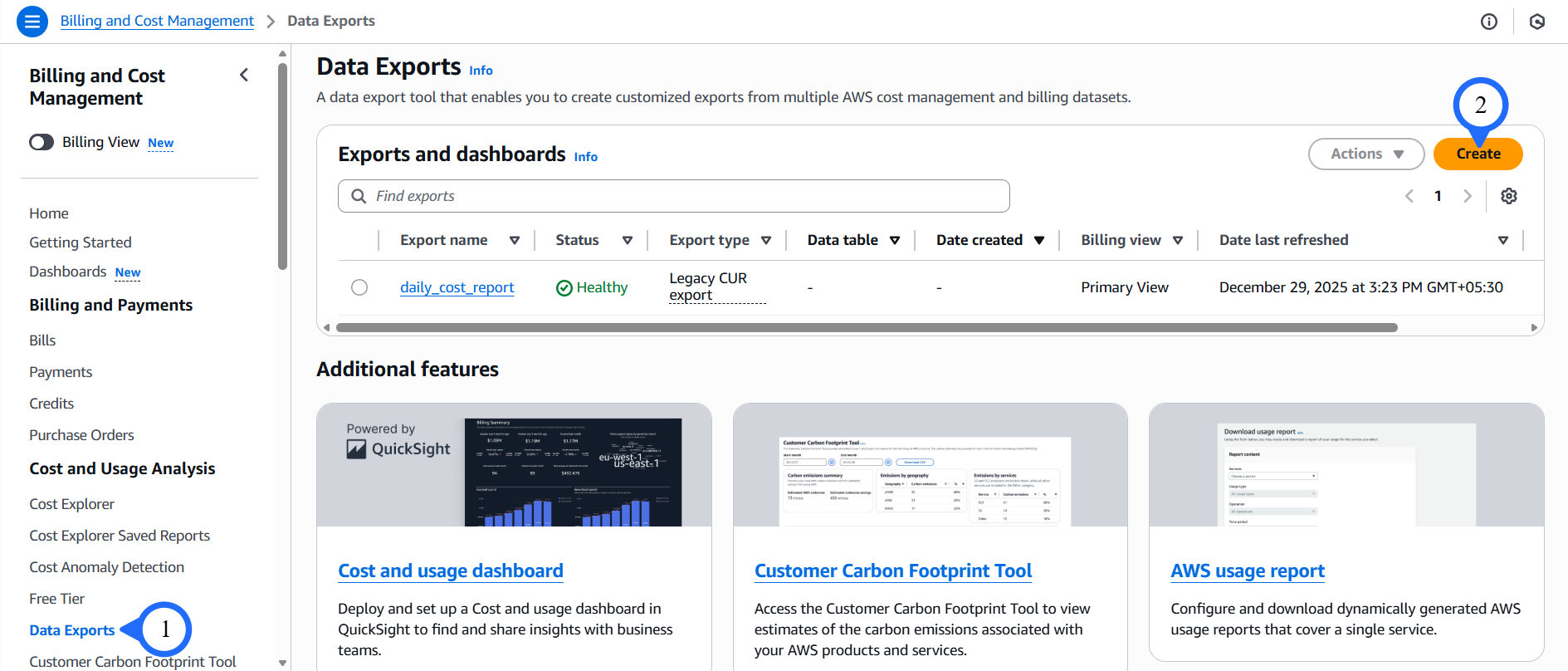
From the left navigation menu, under Cost and Usage Analysis, click Data Exports.
-
Click Create.
-
Select Standard Data Export.
-
Enter the Export name.
-
Under Data table content settings: - Enable FOCUS with AWS columns. - Select Table content version:
1.0.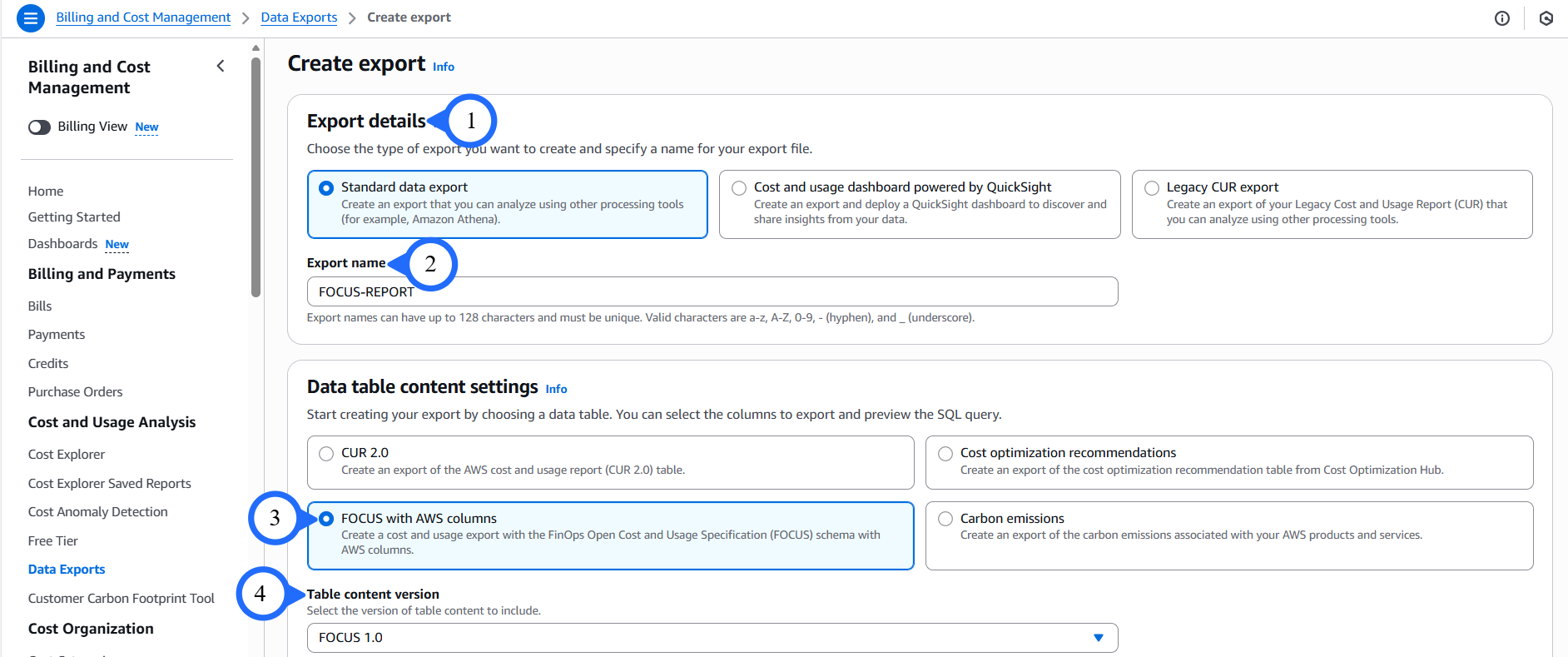 Data Standardization
Using FOCUS model by FinOps Foundation ensures CloudCADI receives standardized, FOCUS-aligned billing data.
-
Under Data export delivery options, configure:
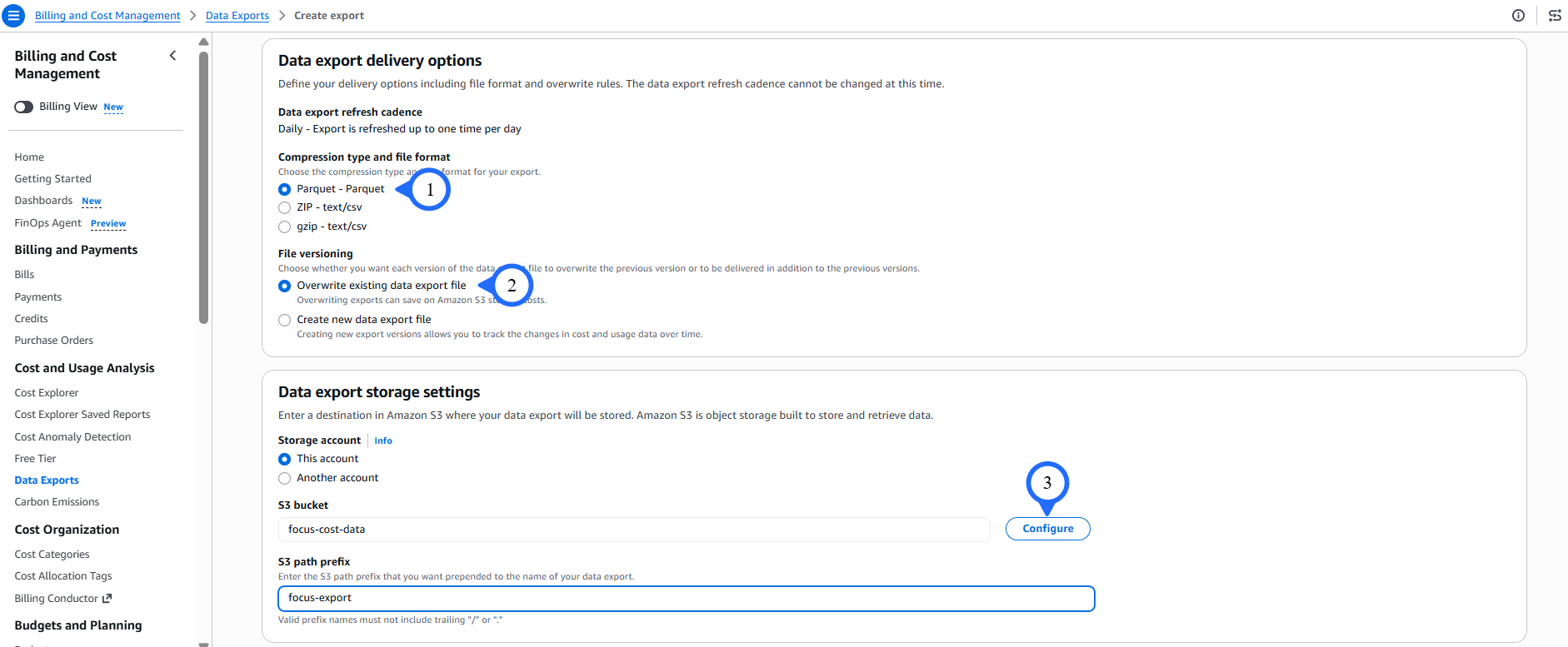
- Compression type and file format: Parquet - Parquet
- File versioning: Overwrite existing data export file
-
Under Data export storage settings.
- Enter S3 bucket.
- Enter S3 path prefix.
- Click Configure.
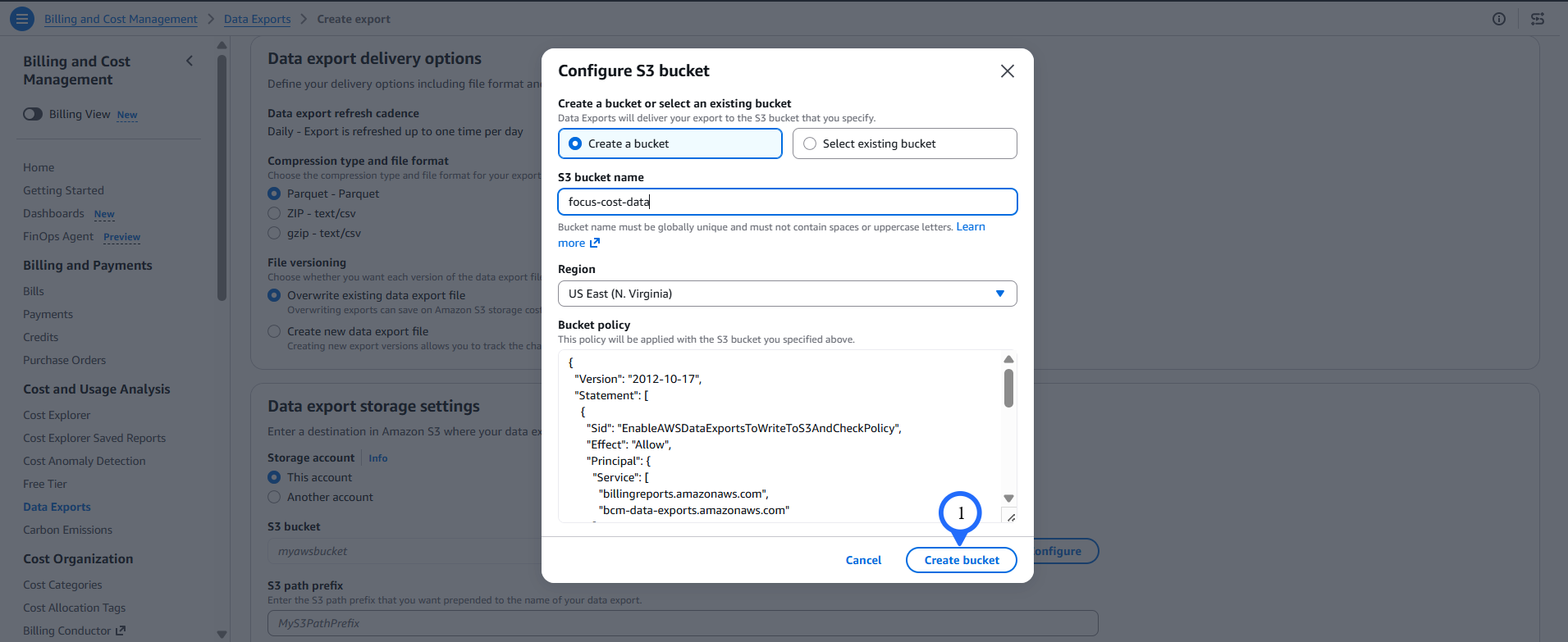
- In the pop-up window:
-
Select Create a bucket
-
Enter S3 bucket name
-
Select the appropriate Region
Data StandardizationEnsure the bucket is created in the same region where CloudCADI will be deployed.
-
Click Create bucket.
-
Cost and usage files will start appearing in the S3 bucket within 24 hours of successful configuration.
Step 2 - Cost Report in S3 Bucket
- Go to S3 console -> Buckets.
- New bucket will be created.
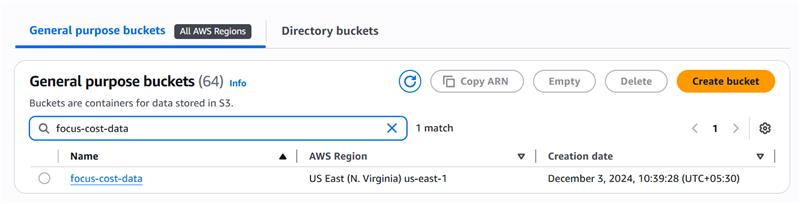
- Click the Bucket name.
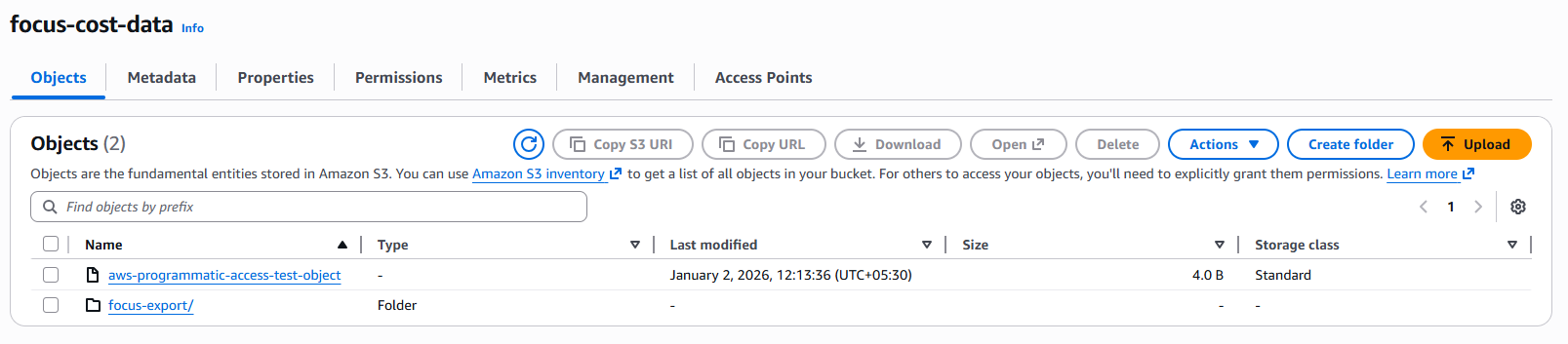
- Click the Export name folder.
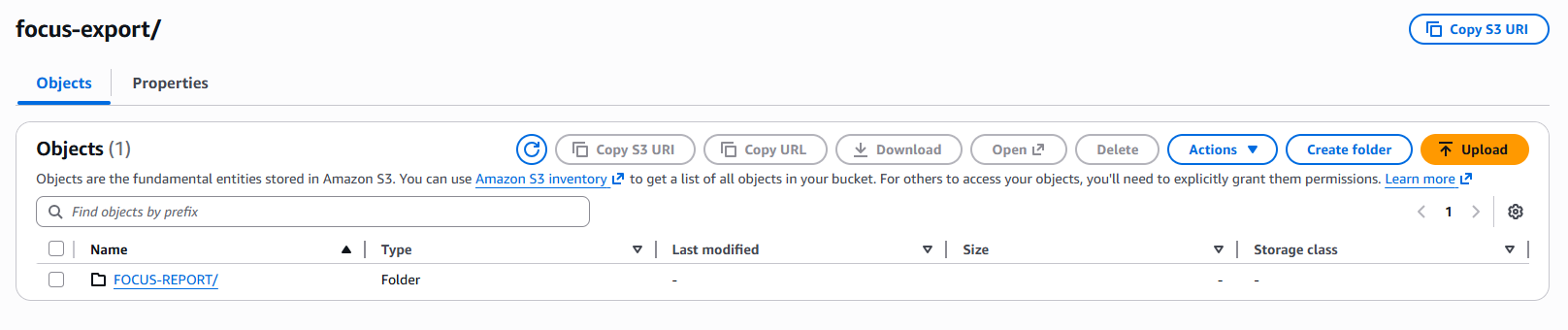
- Cost reports are maintained in folder on monthly basis.
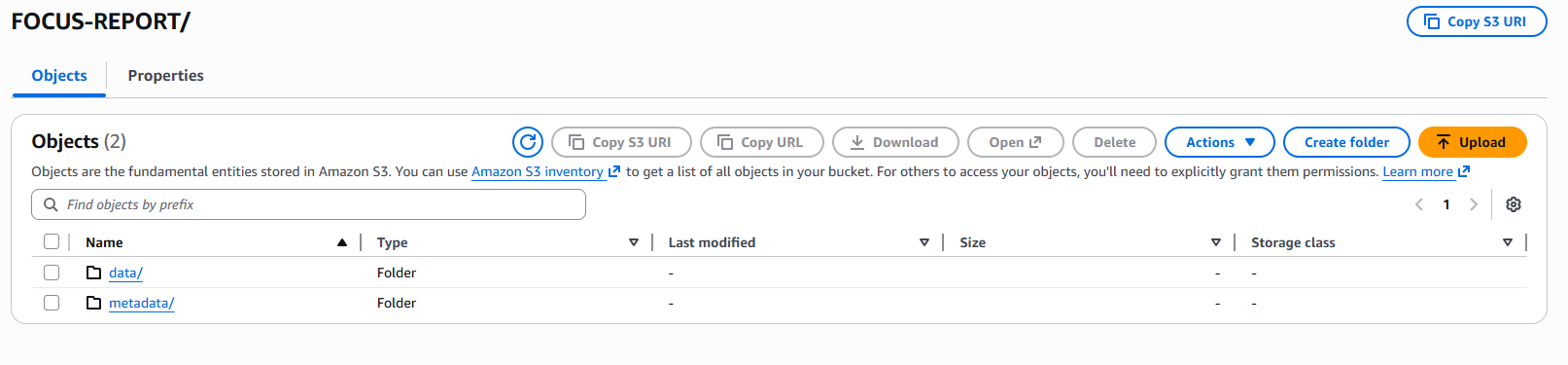
- Click the latest month folder.
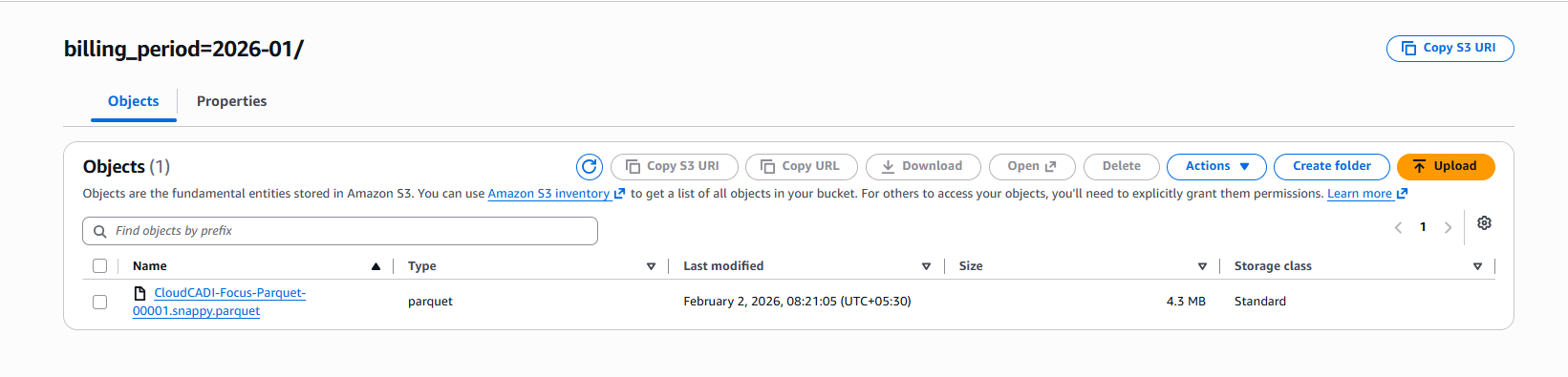
You will need the following values while configuring CloudCADI:
- S3 Bucket Name → The bucket you created
- S3 Path Prefix → The prefix entered during export configuration
- Export Name → The export name you provided
These combine to form the cost export path in the following format:
<bucket-name>/<path-prefix>/<export-name>
Example: focus-cost-data/focus-export/FOCUS-REPORT