Slack
CloudCADI integrates with Slack to send cost variance alerts, user-created alerts, and daily reports highlighting the top three cost utilizations. This helps teams monitor costs and optimize cloud spending.
Integrate Slack with CloudCADI
-
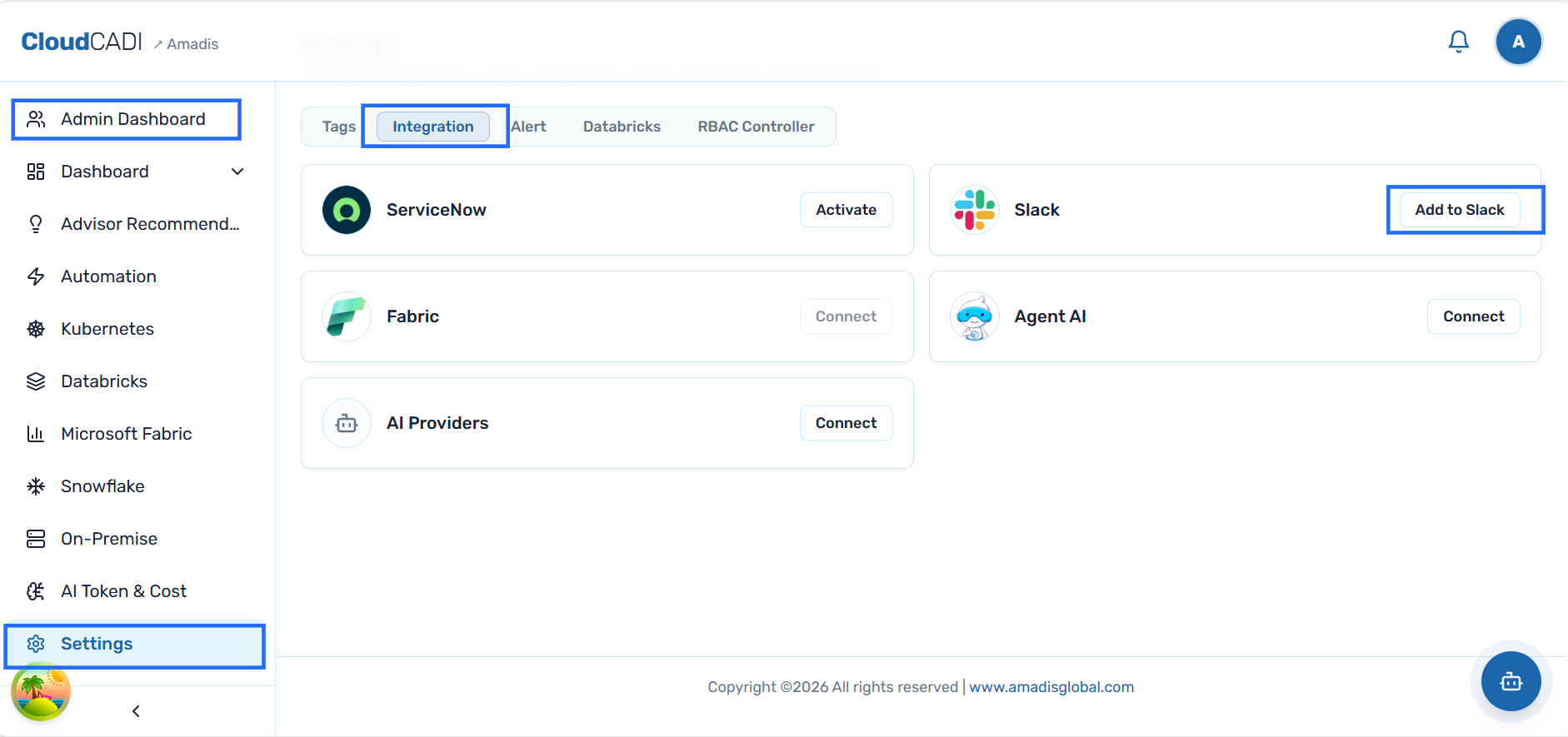
To integrate Slack, navigate to the Admin Dashboard, select Settings from the left sidebar, and then select Integrations. Click Add to Slack to begin the integration process.
-
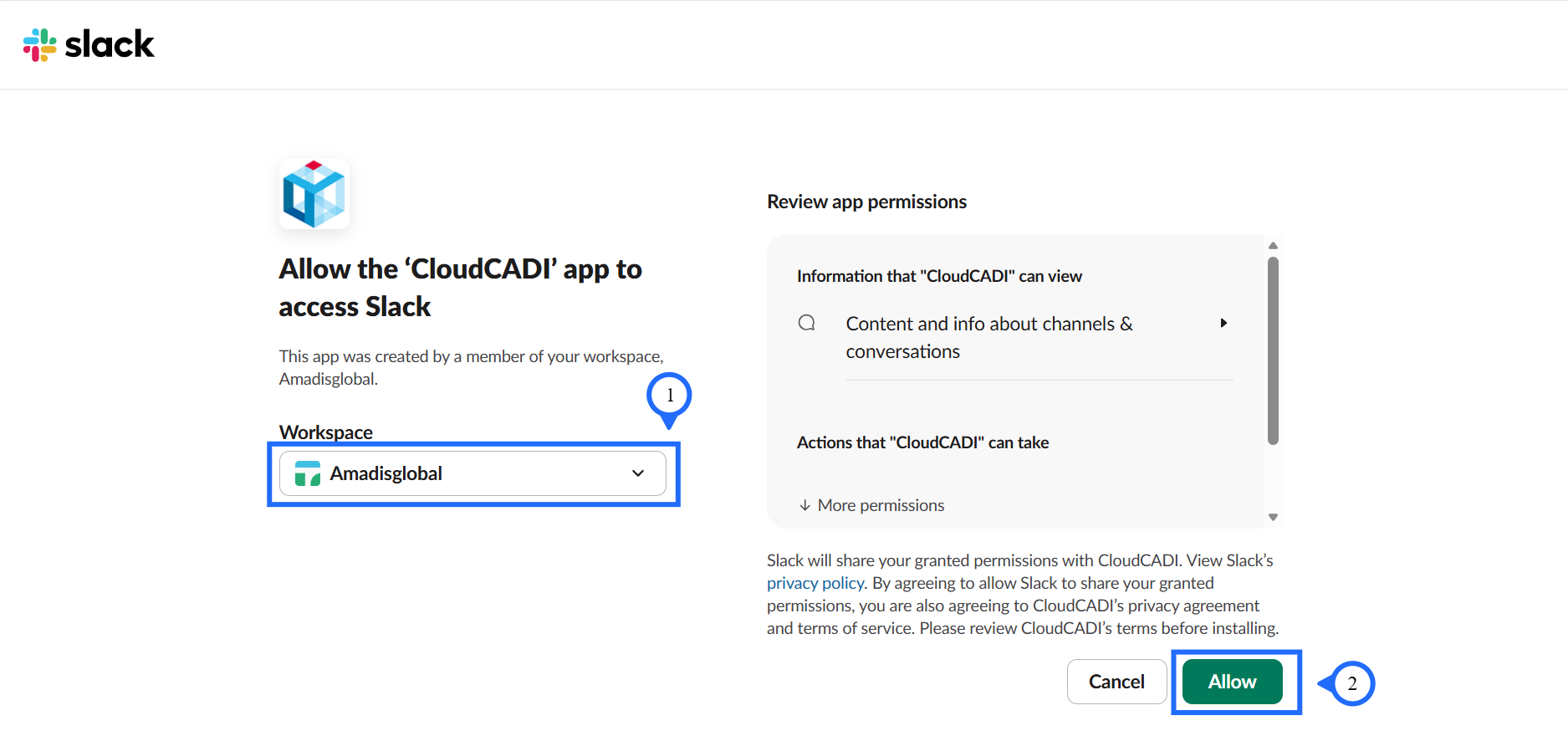
You will be redirected to the Slack authorization page.
-
In the slack authorization page, select your Workspace and click Allow.
-
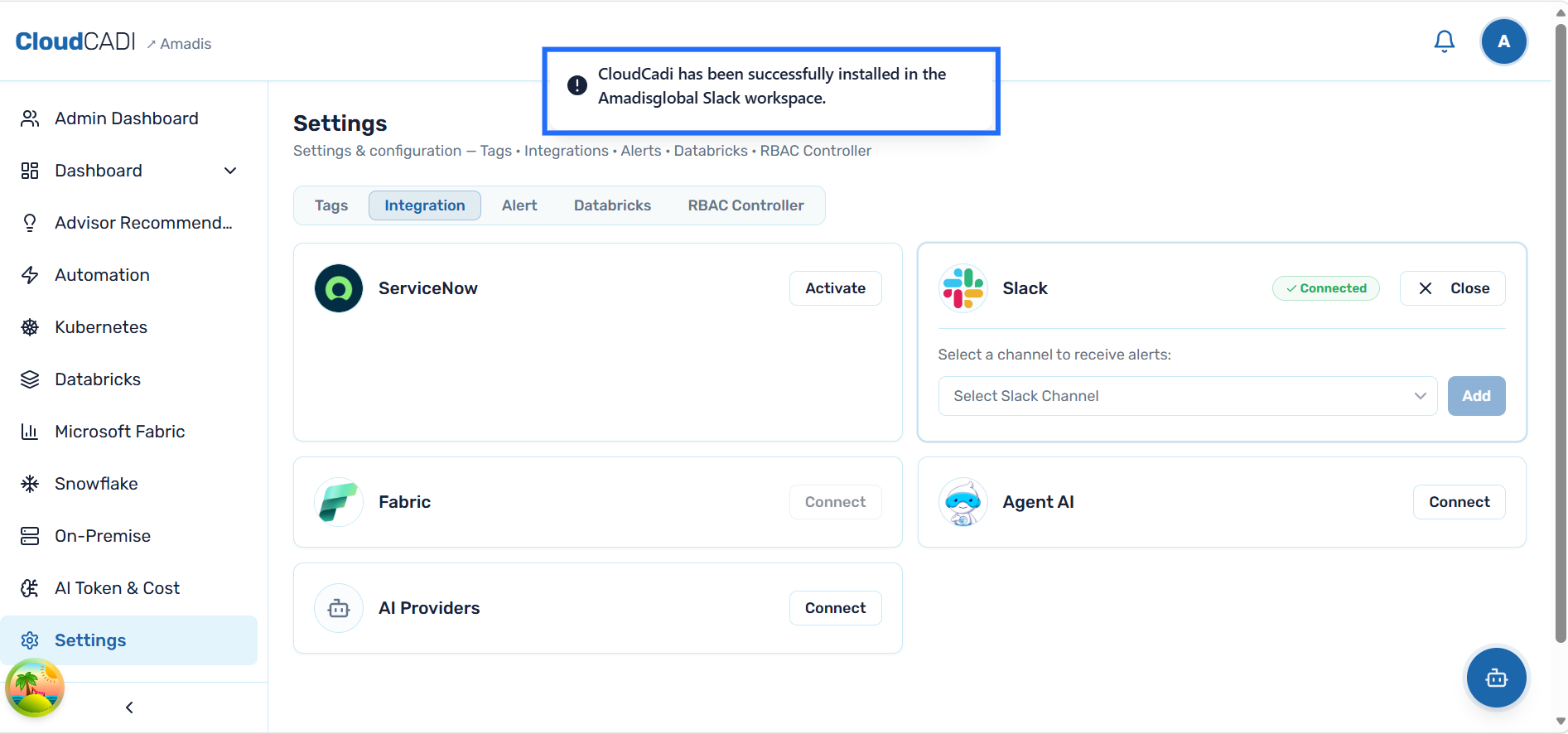
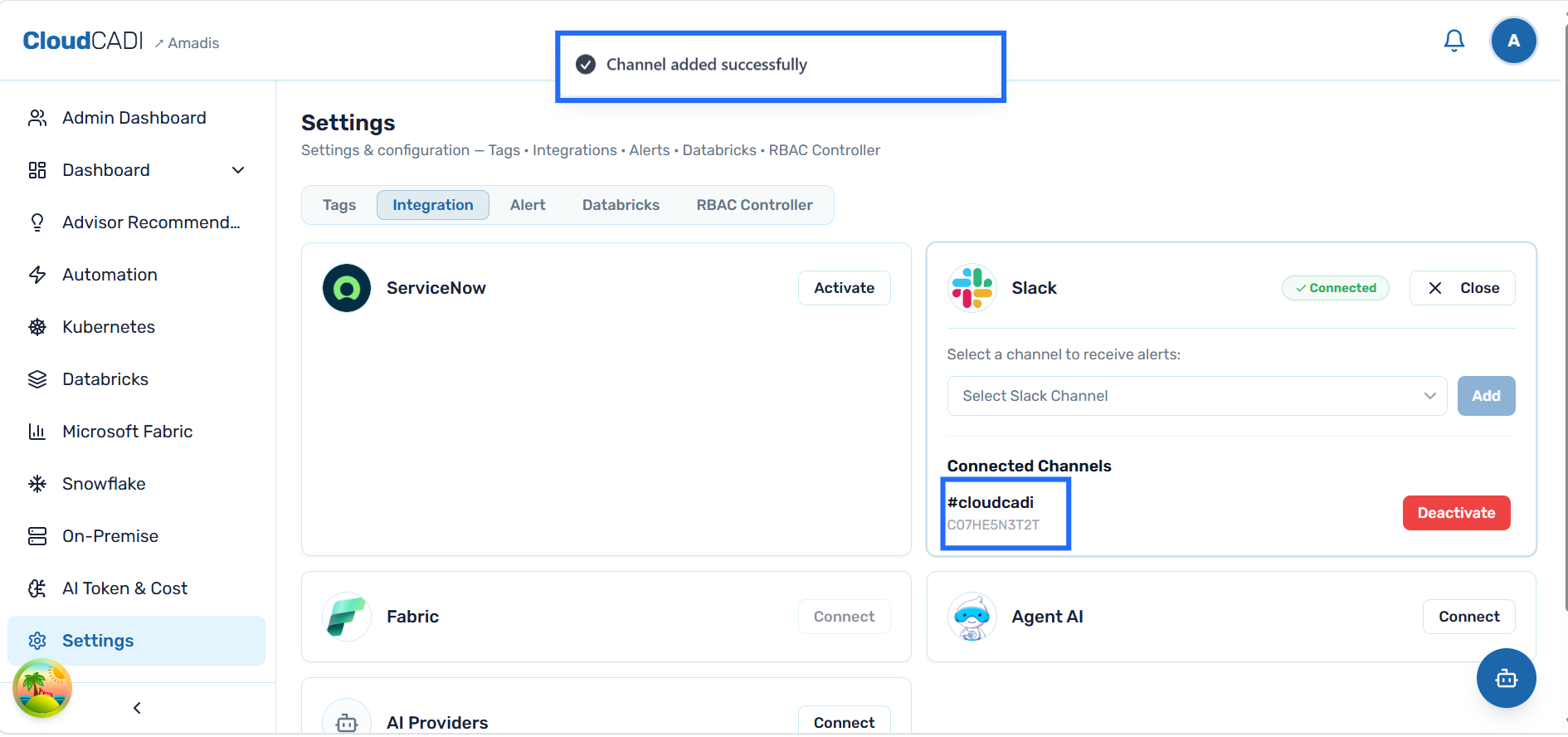
After successful authorization, you will be redirected to CloudCADI. A confirmation message will appear at the top of the Integrations page.
-
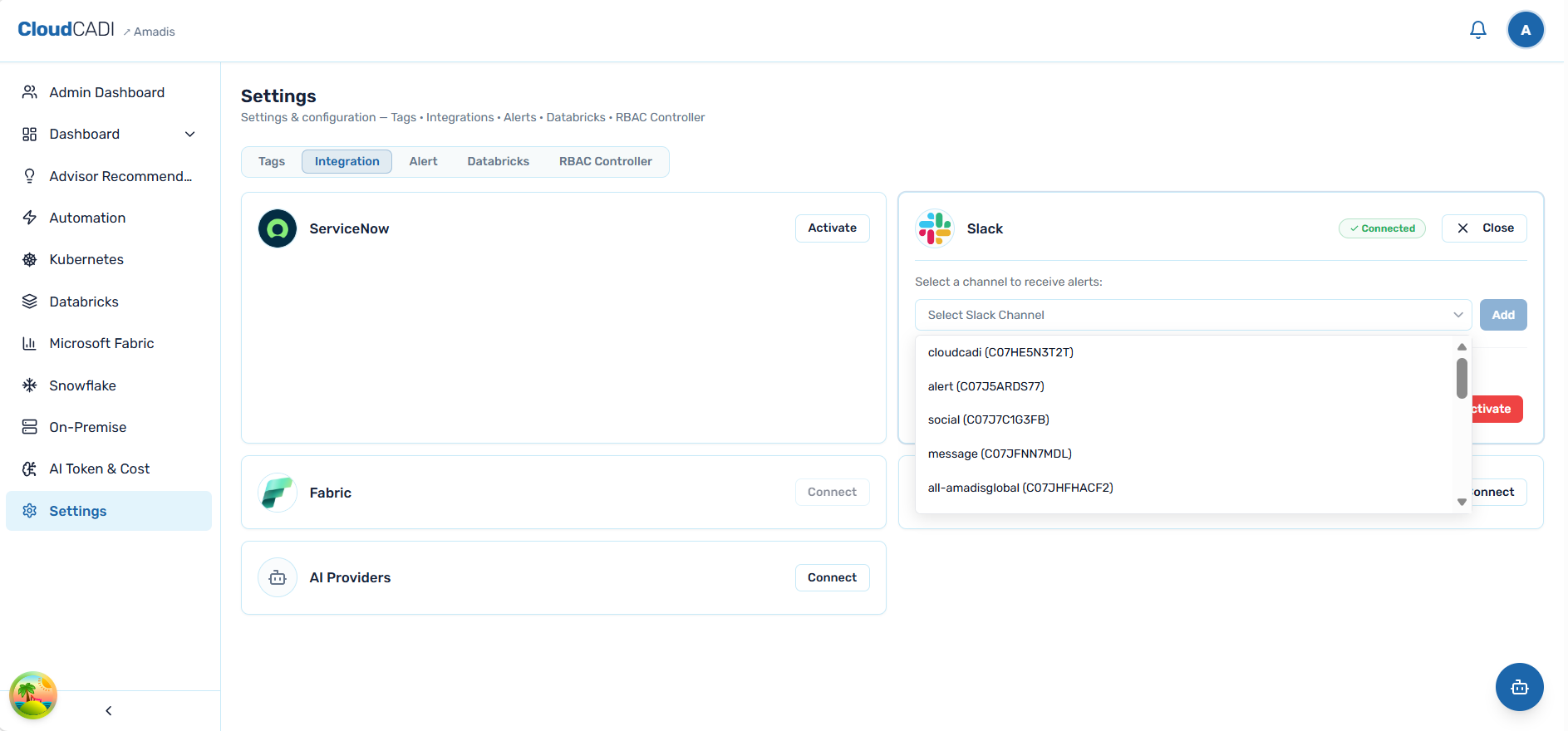
The selected channels will appear under Connected Channels.
-
The added channels will appear under Connected Channels. Select the Slack channels where you want to receive CloudCADI alert messages.
-
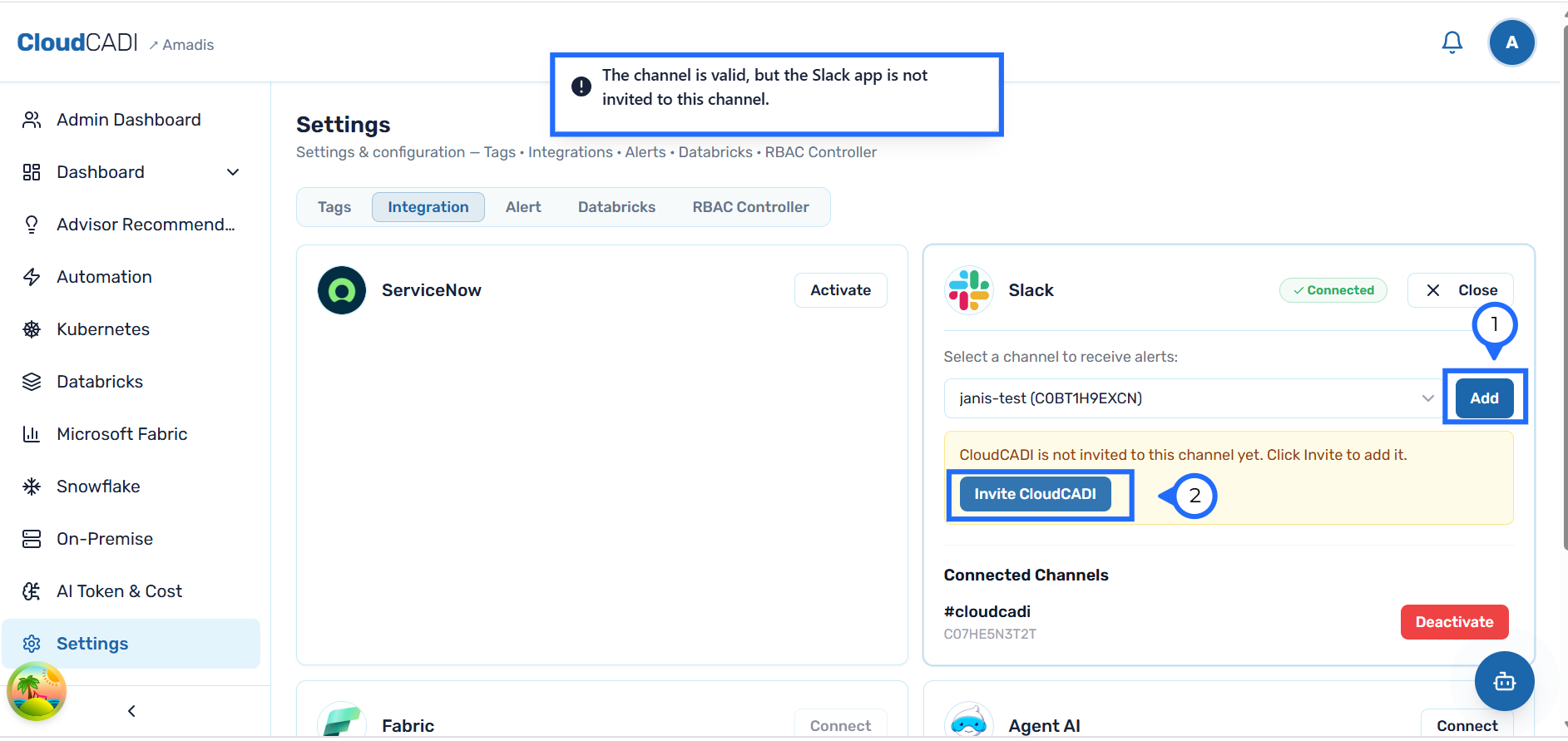
Make sure the CloudCADI app is invited to the channel through Slack or during the channel setup in CloudCADI. Otherwise, the channel will not be added.
-
Your channel is now configured to receive cost variance alerts, user-created alerts, and daily top-three utilization reports.