Connect an Azure Account (CloudCADI hosted on Azure)
Setup Steps
Step 1 - Connect the Azure Account
-
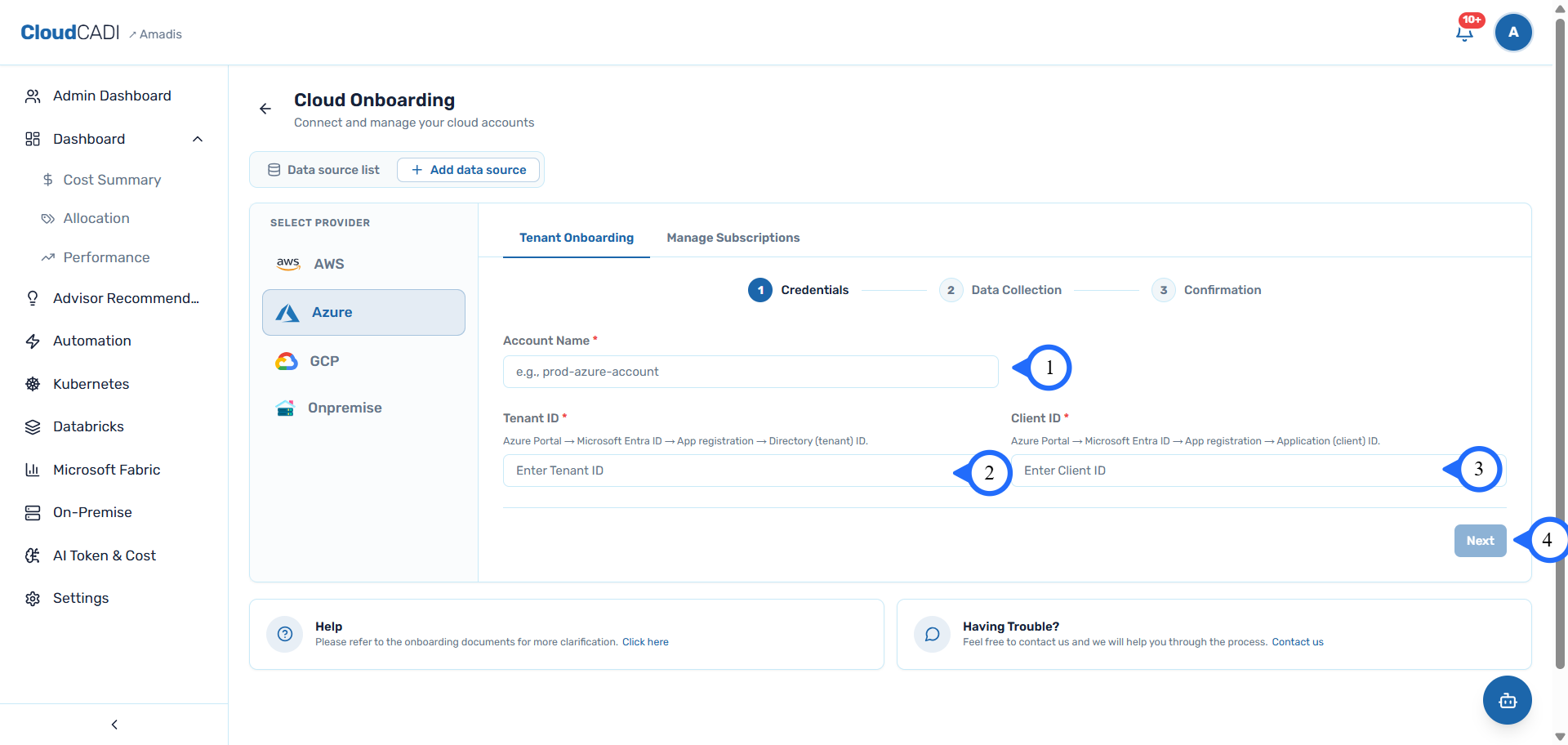
Enter the Azure account name, Tenant ID, and Client ID (created during deployment), then click Next.
-
Enter the Workspace ID (
logAnalyticsWorkspaceIdfrom the deployment output), DCR name (dcrNamefrom the deployment output), and Storage account name (storageAccountNamefrom the deployment output), then click Next.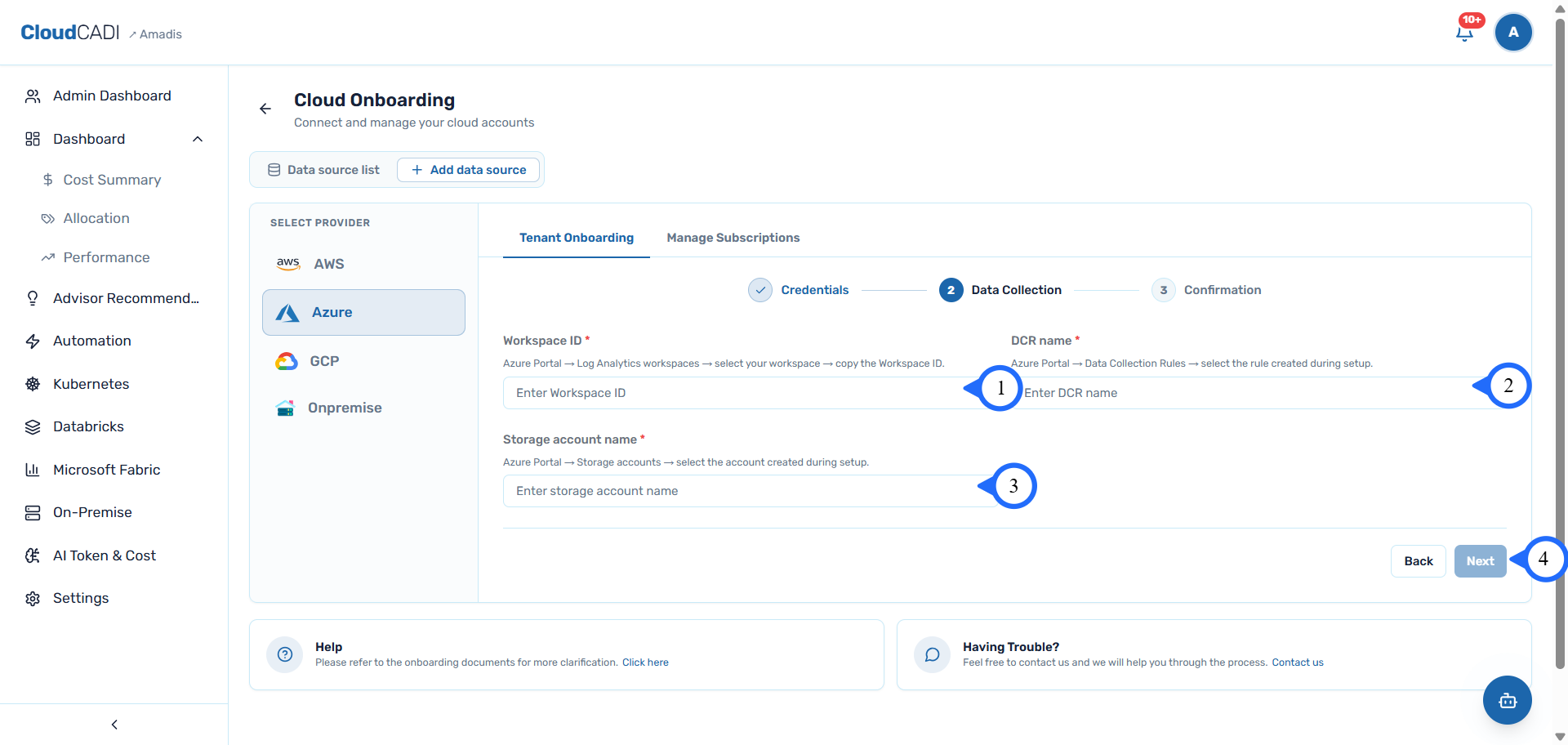
-
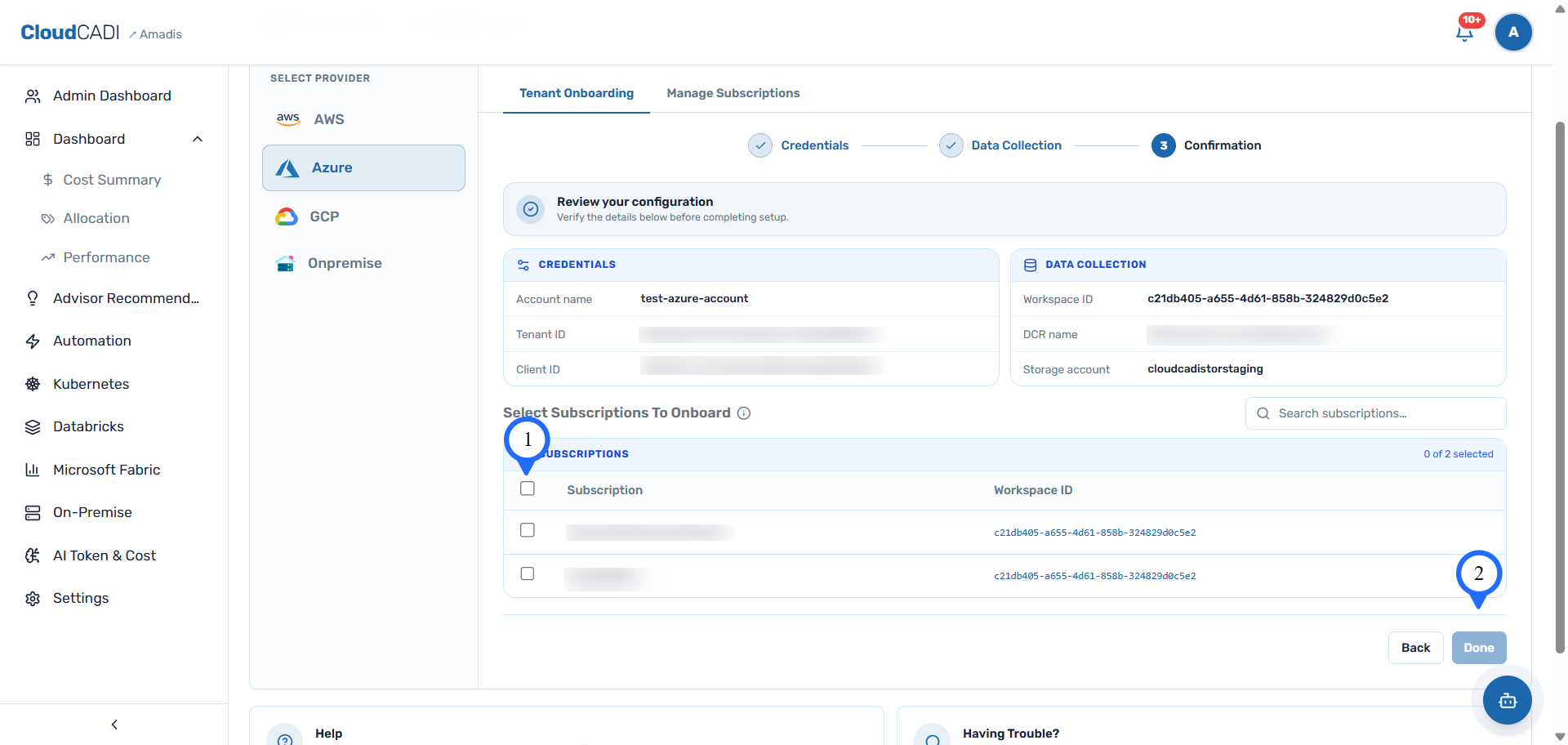
Select the subscription to onboard and click Done.
Manage Azure Subscriptions
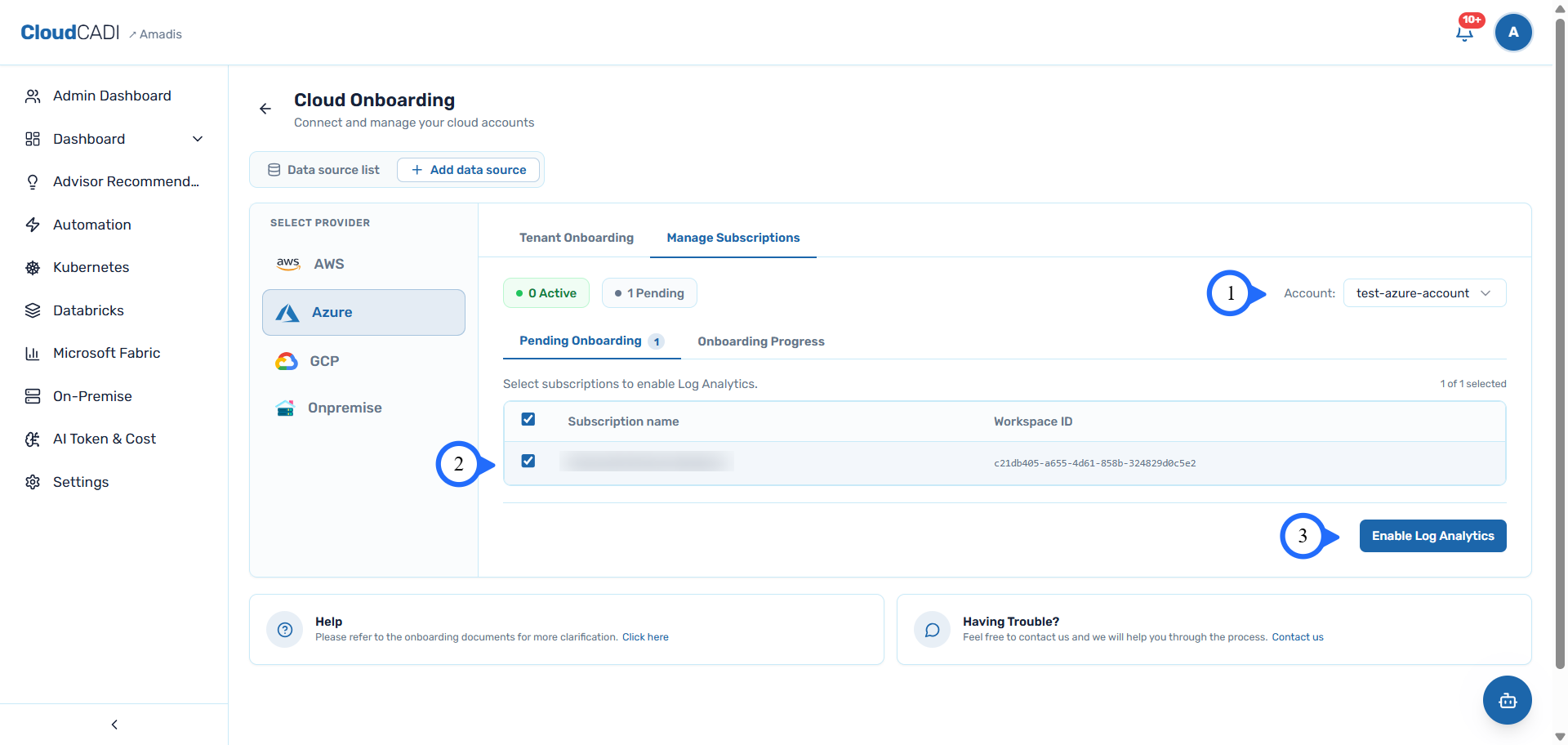
On an already-onboarded account, you can onboard any other available subscriptions under that same account.
Select the account, then the subscription, and click Enable Log Analytics. That subscription starts enabling Log Analytics, and its progress appears in the Onboarding Progress section.