Connect a GCP Account (CloudCADI hosted on GCP)
Auto and Manual Onboarding
CloudCADI supports two methods for onboarding Google Cloud Platform (GCP) projects:
- Auto Setup – Recommended for onboarding one or more projects under a GCP Organization.
- Manual Setup – Used when the user wants to provide project and billing information manually.
Auto Setup
-
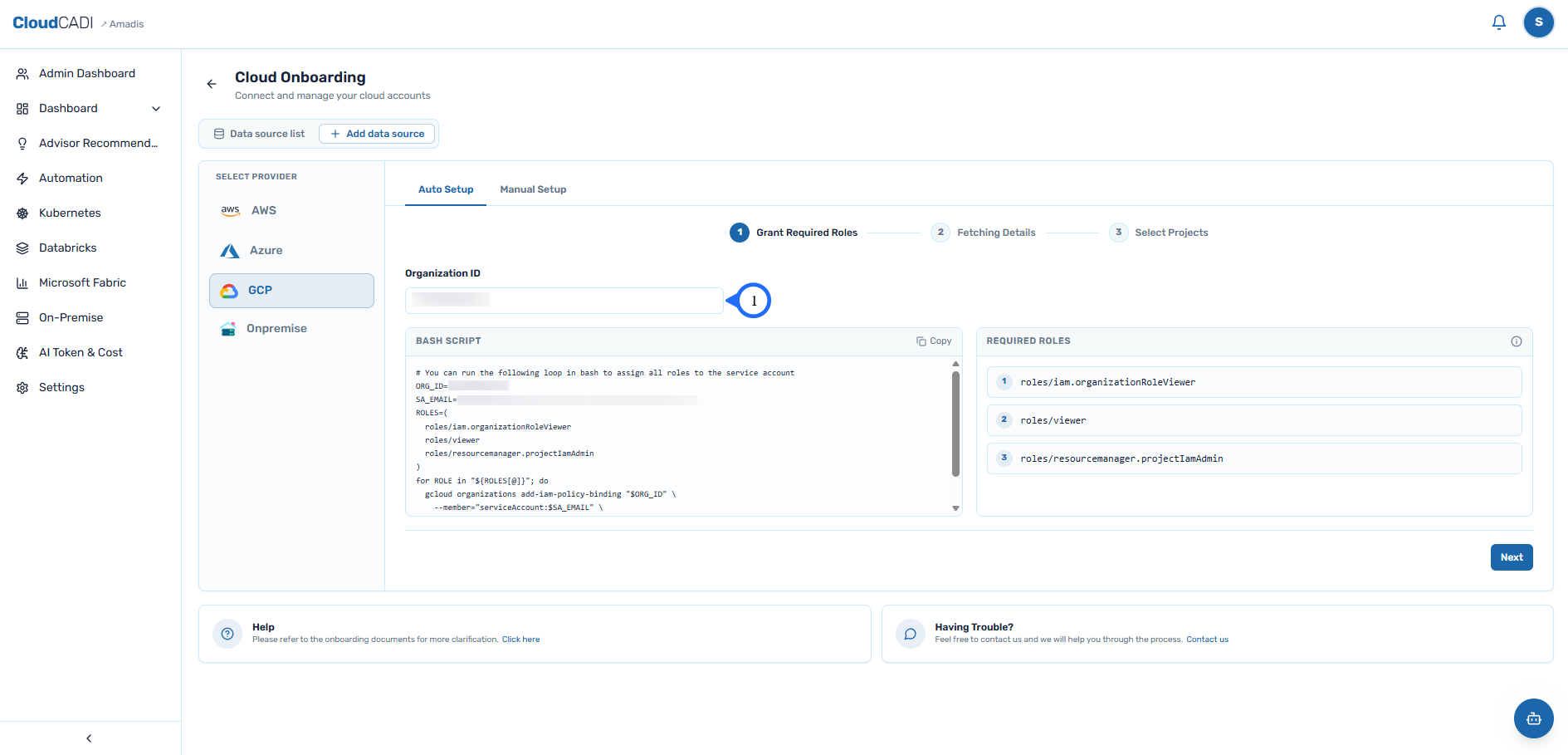
Enter your Organization ID in the field provided.
-
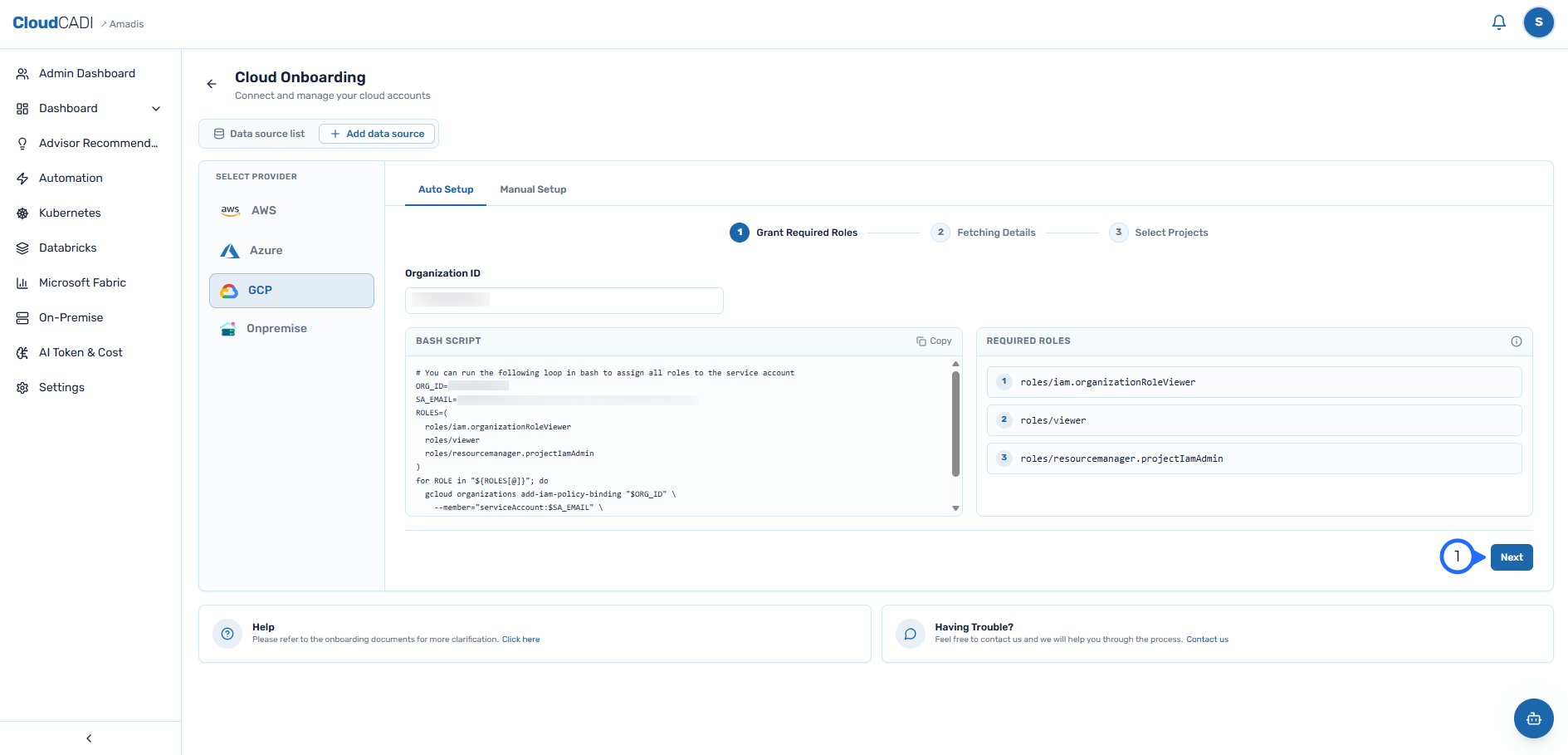
Copy the Bash Script shown on the page.The script grants the Required Roles to the CloudCADI service account. Once the roles are granted, click Next.
-
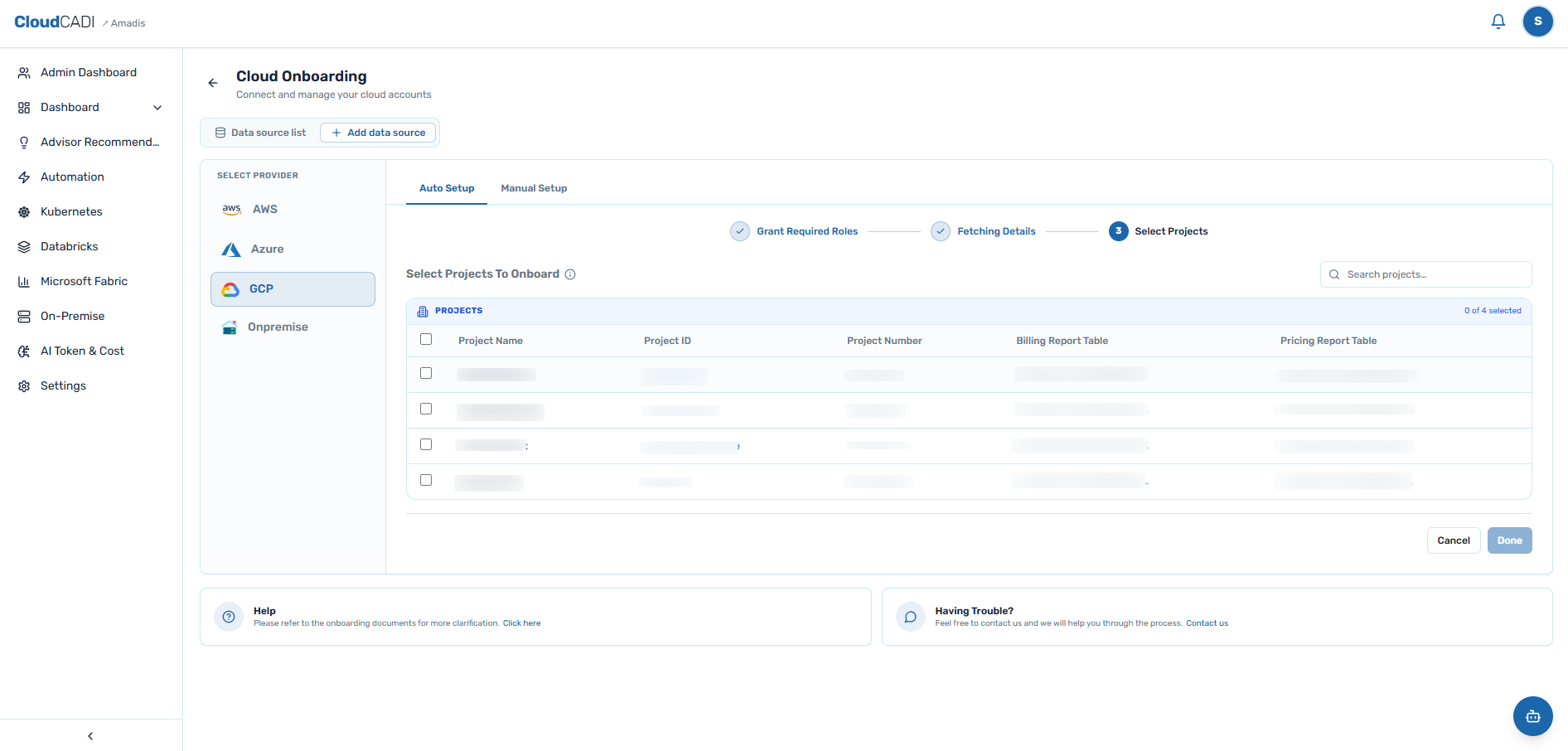
CloudCADI uses the granted permissions to automatically connect to your GCP organization and retrieve the list of associated projects.
-
Select the projects to onboard and click Done.
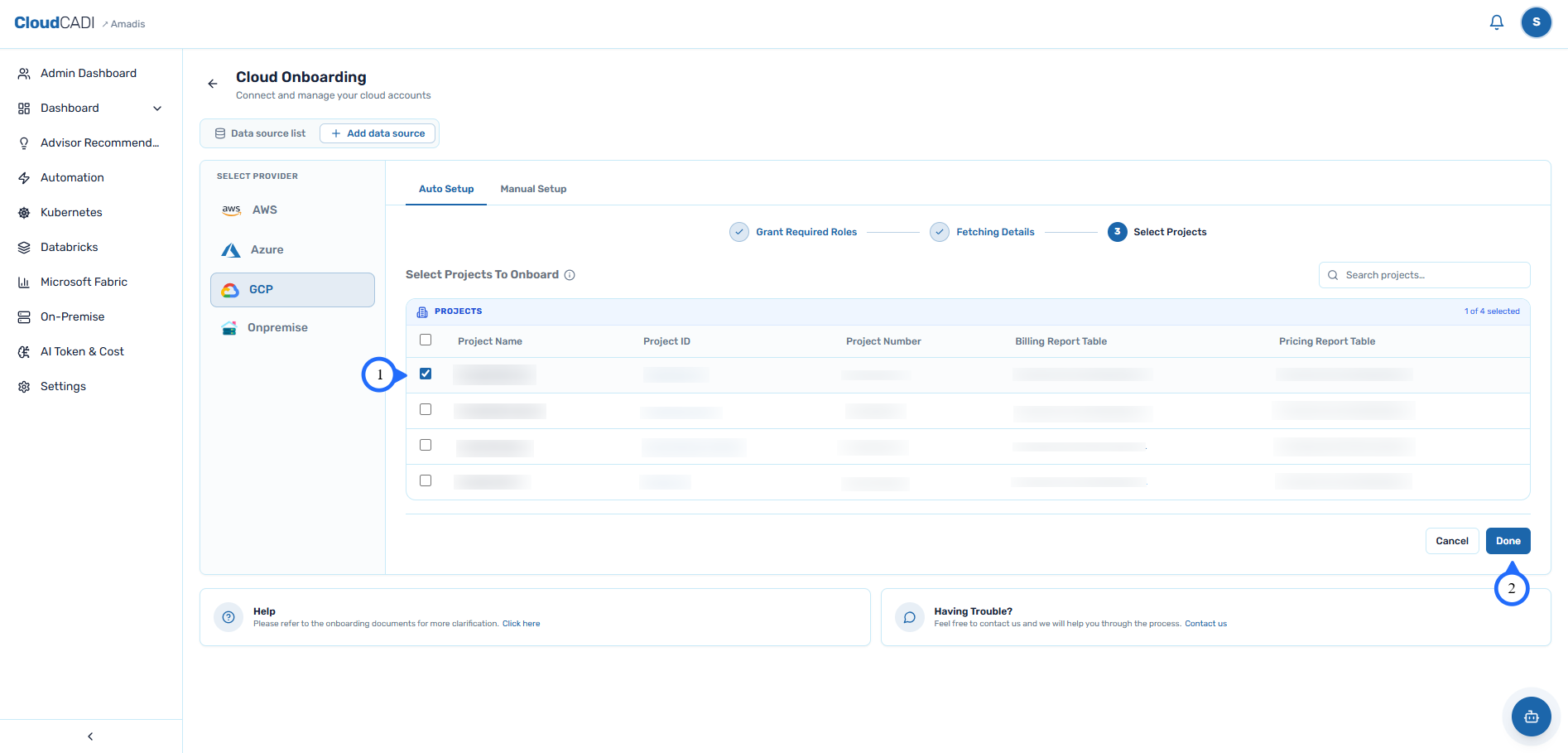
Manual Setup
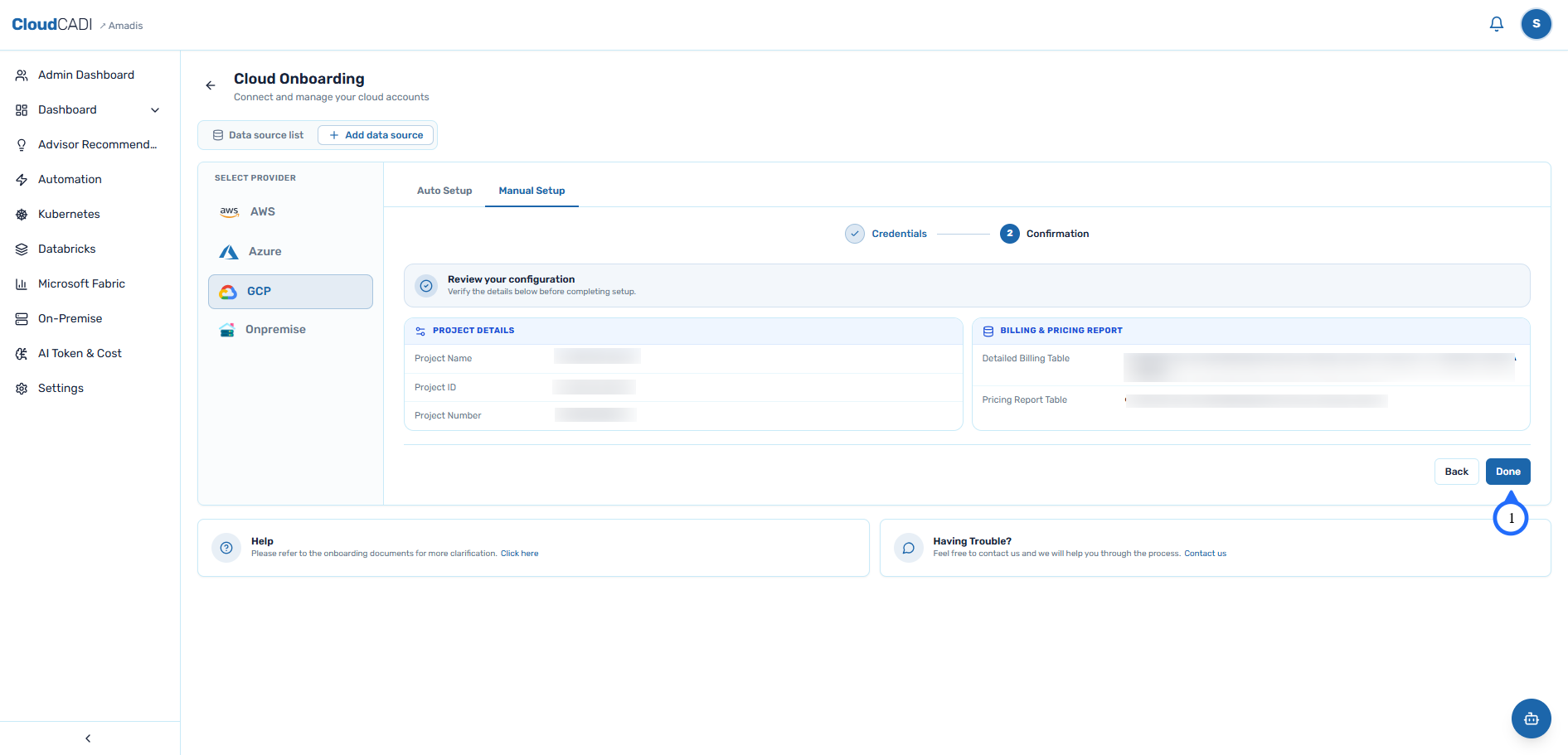
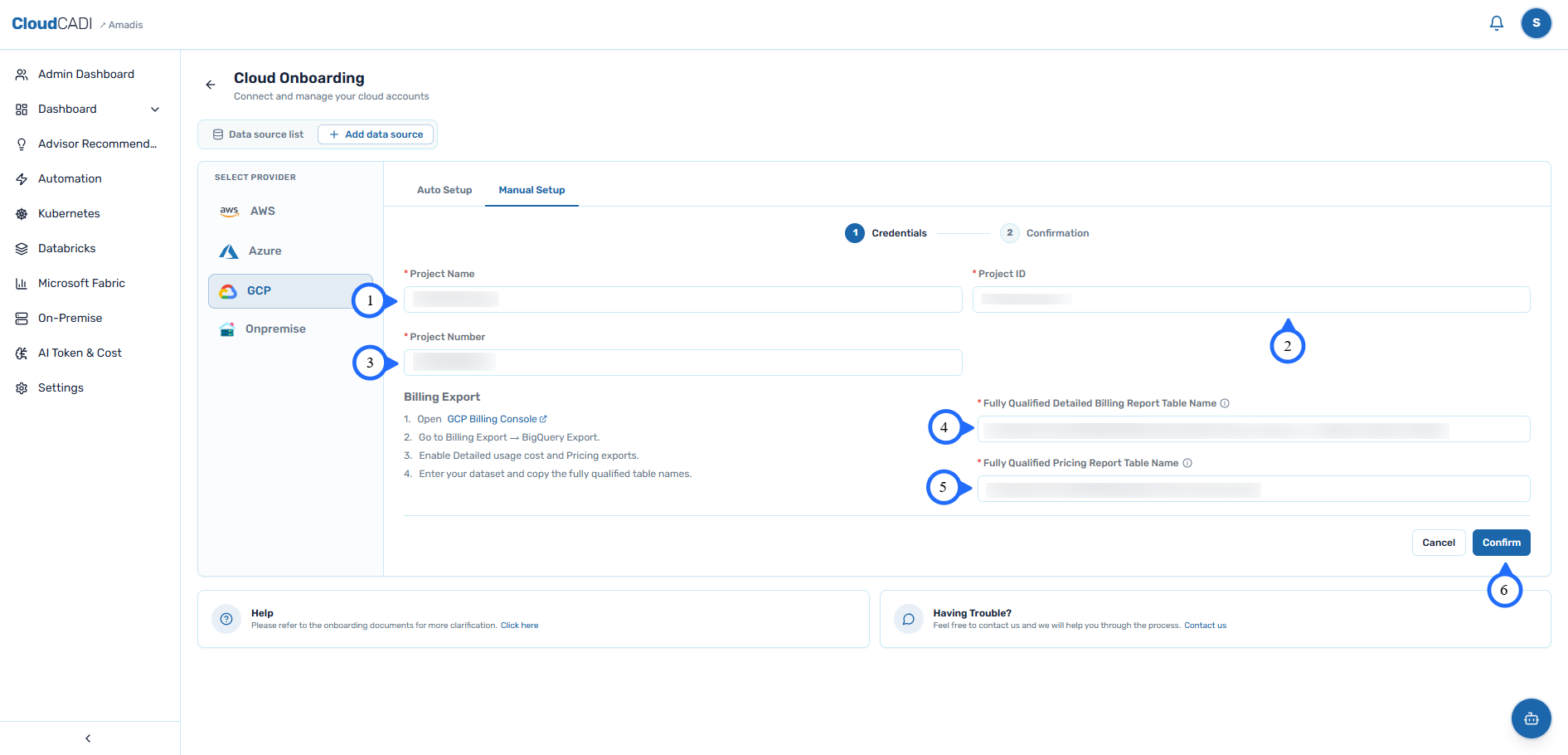
- Enter the Project Name, Project ID, Project Number, Fully Qualified Detailed Billing Report Table Name, and Fully Qualified Pricing Report Table Name, verify all the fields, and click Confirm.
Before you start
For enabling Detailed Usage Cost and Pricing exports and obtaining the fully qualified BigQuery table names, refer to the GCP Billing Export documentation.
- Review the Project Details and Billing & Pricing Report values carefully, click Back to correct any incorrect information and return to the Confirmation screen, or, if all values are correct, click Done.